Automate Web Article Conversion to Markdown using Python
Convert any article URL into clean, structured Markdown. This tool extracts main content, removes clutter, fixes images, preserves code blocks, and delivers a ready-to-use .md file instant
What Is This Project About?
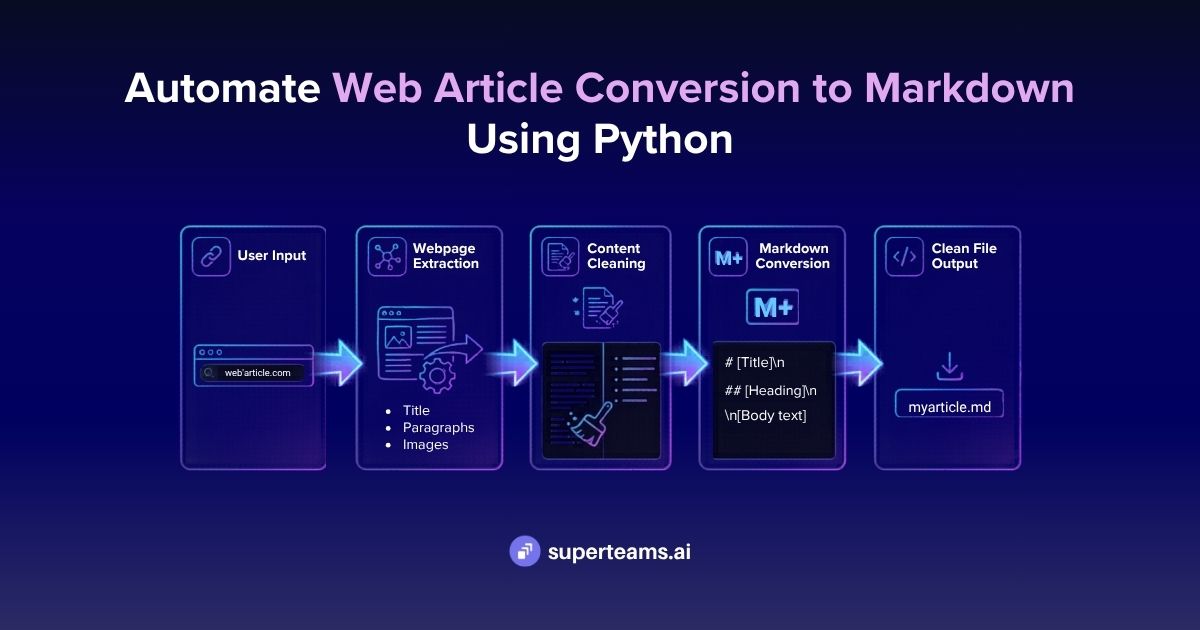
Have you ever read an article online and wished you could save it as a clean text file — without the ads, navigation bars, popups, and HTML clutter? That's exactly what this project does.
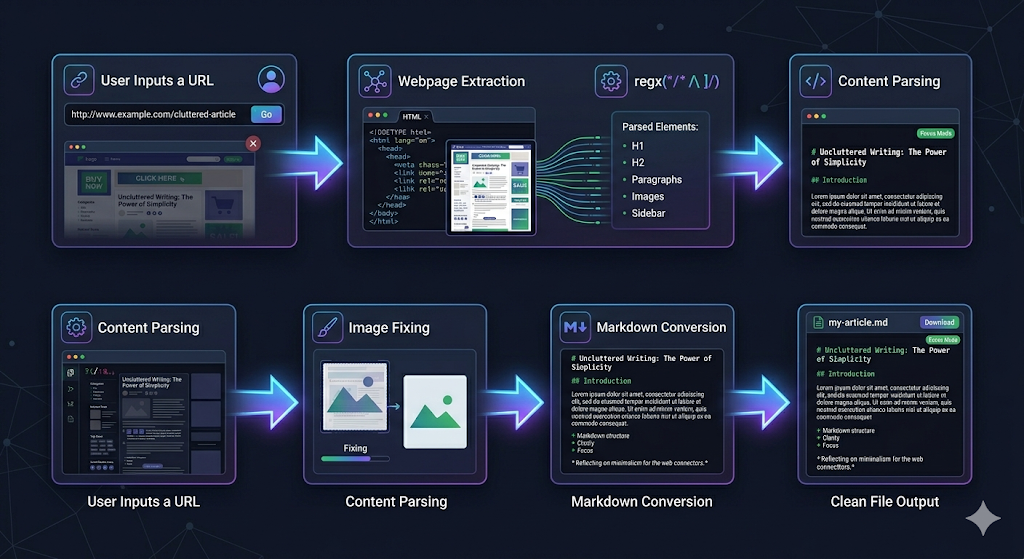
We built a tool that takes any article URL, fetches the page, pulls out just the article content, and converts it into a neat Markdown (.md) file — complete with working images and properly formatted code blocks.
You just paste in a URL. You get a .md file back.
That's the whole idea.
Why Markdown?
Before we get into the code, let's answer the question: why convert to Markdown at all?
Markdown is a lightweight formatting language. Instead of HTML tags like <h1> or <strong>, you write:
# This is a heading
**This is bold text**
- This is a list item
Markdown is popular because:
- It's plain text — readable even without any special software
- It works in Obsidian, Notion, GitHub, VS Code, and hundreds of other tools
- It's great for feeding articles into AI tools as context
- You can search, copy, and paste it freely without worrying about broken HTML
So converting a web article into Markdown makes it portable, searchable, and reusable.
Project Structure
The project is split into four Python files, each with a single clear responsibility:
project/
├── extractor.py   ← Fetches the webpage and pulls out the article
├── utils.py       ← Fixes image URLs so they still work
├── converter.py   ← Converts the article HTML into Markdown
└── app.py         ← The web interface (built with Streamlit)
Let's go through each step in detail.
Step 1 — Fetching the Web Page
File: extractor.py Function: fetch_html(url)
The first thing we need to do is download the raw HTML of the article page. Think of this like your browser loading a webpage — except instead of rendering it visually, we're capturing the raw code.
This is done using a Python library called requests, which makes it easy to send HTTP requests.
import requests

HEADERS = {
    "User-Agent": "Mozilla/5.0"
}

def fetch_html(url: str) -> str:
    response = requests.get(url, headers=HEADERS, timeout=10)
    response.raise_for_status()
    return response.text
What's a User-Agent and Why Does It Matter?
When your browser loads a page, it tells the server who it is — something like "I'm Google Chrome on Windows." This is called the User-Agent header.
Many websites block or give empty responses to requests that don't have a User-Agent, because they assume it's a bot or scraper trying to abuse their site.
By setting "User-Agent": "Mozilla/5.0", we make our request look like it's coming from a regular browser. The server is much more likely to send us the full page content.
Without it, you'll often get a 403 Forbidden error.
What Does raise_for_status() Do?
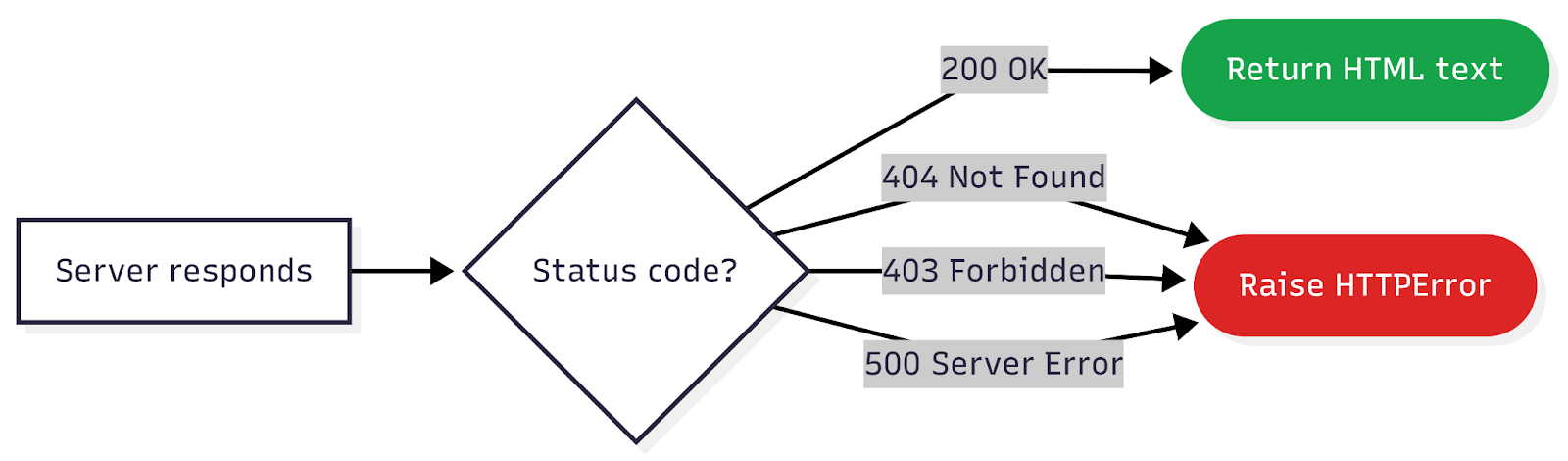
If the server returns an error (like 404 Not Found or 500 Server Error), raise_for_status() turns that into a Python exception right away — rather than silently returning an empty or broken page. It's a safety net.
Step 2 — Finding the Article Inside the HTML
File: extractor.py function: extract_article(html)
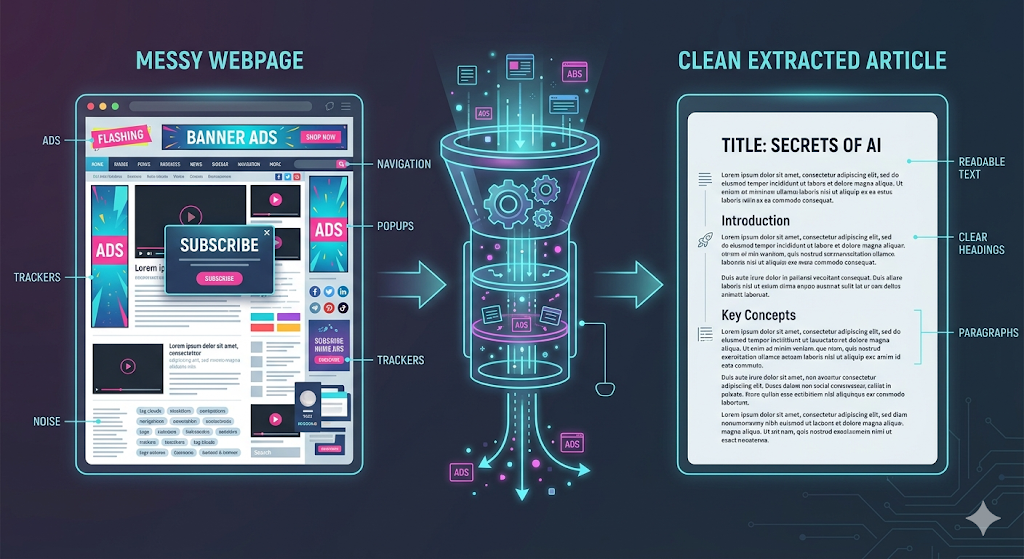
A raw webpage is messy. Along with the article itself, it contains navigation menus, footers, sidebars, cookie banners, newsletter signups, social media buttons, and more.
We need to find just the article. This is where Beautiful Soup comes in — a Python library for parsing and navigating HTML.
from bs4 import BeautifulSoup
def extract_article(html: str):
soup = BeautifulSoup(html, "html.parser")
BeautifulSoup takes raw HTML text and gives you a Python object you can search through — like a tree of elements you can navigate.
Strategy 1: Semantic Selectors
Well-built websites mark their main content with semantic HTML tags. We check for these first:
selectors = [
    ("article", {}),
    ("main", {}),
    ("div", {"class": "prose"}),
    ("div", {"class": "markdown"}),
    ("div", {"class": "blog-content"}),
    ("div", {"class": "content"}),
]

for tag, attrs in selectors:
    article = soup.find(tag, attrs)
    if article and len(article.get_text(strip=True)) > 200:
        break
We try each selector in order. If we find a matching element and it has more than 200 characters of text (so we know it's real content, not an empty wrapper), we use it.
The 200 character minimum is important. Without it, we might grab an empty <main> tag that's just a layout wrapper with nothing inside.
Strategy 2: Scoring Fallback
If none of the standard selectors match, we fall back to a scoring system. We score every <div> and <section> on the page and pick the one with the highest score:
candidates = soup.find_all(["div", "section"])

def score(tag):
    text_len = len(tag.get_text(strip=True))
    p_count = len(tag.find_all("p"))
    return text_len + (p_count * 50)

article = max(candidates, key=score, default=None)
The scoring logic:

Why do paragraphs count for 50 points each? Because <p> tags are a strong signal of actual article content. Navigation menus and footers use links and headings, not paragraphs. A section full of <p> tags is almost certainly body text.
Cleaning Out the Noise
Once we have our article container, we still need to remove elements inside it that don't belong:
# Remove structural/functional elements
for tag in article(["script", "style", "button", "nav",
                    "footer", "header", "aside", "form", "noscript"]):
    tag.decompose()

# Remove tiny divs and spans (likely UI widgets, not content)
for tag in article.find_all(True):
    if tag.name in ["div", "span"]:
        if tag.find_parent(["pre", "code"]) is not None:
            continue  # Don't touch elements inside code blocks!
        text = tag.get_text(strip=True)
        if len(text) < 20 and not tag.find(["img", "code", "pre"]):
            tag.decompose()
Notice the important exception: we never remove elements that are inside <pre> or <code> tags. Code blocks often contain short strings like "true", null, or "/" that would be deleted if we weren't careful.
Step 3 — Fixing Image URLs
File: utils.py Function: fix_image_urls(article, base_url)
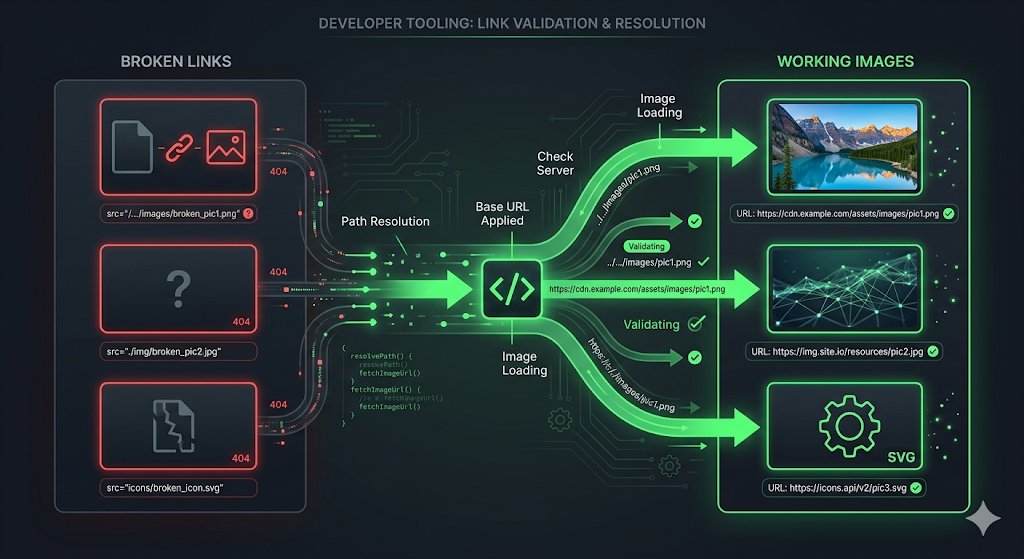
Articles often reference images using relative URLs — paths like /images/banner.png instead of the full https://example.com/images/banner.png..
Relative URLs work fine in a browser because the browser already knows which domain it's on. But in a Markdown file, they break — the file has no domain to resolve them against.
The fix is simple:
from urllib.parse import urljoin

def fix_image_urls(article, base_url):
    for img in article.find_all("img"):
        src = img.get("src") or img.get("data-src")
        if src:
            img["src"] = urljoin(base_url, src)
urljoin is a built-in Python function that's smart about this:
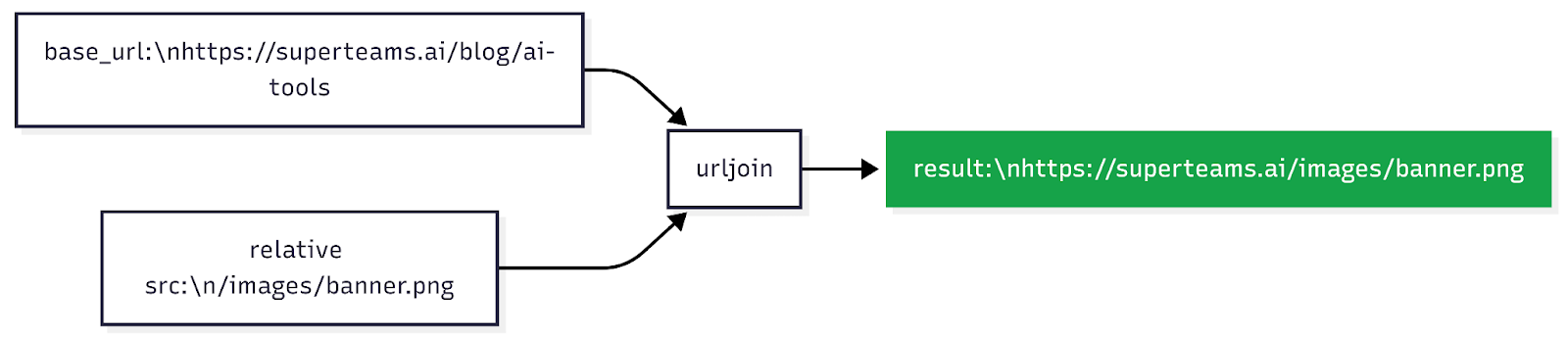
It also handles data-src attributes — some websites use lazy-loading, where the real image URL is stored in data-src rather than src, and only gets moved to src by JavaScript when the user scrolls to it.
Step 4 — Converting HTML to Markdown
File: converter.py Function: convert_to_markdown(article)
This is the most technically interesting part. We're using a Python library called markdownify to convert HTML into Markdown — but we add a critical improvement before handing it the HTML.
The Code Block Problem
markdownify doesn't handle code blocks well. When it processes text inside <pre> or <code> tags, it can:
- Escape backslashes and special characters
- Collapse or normalize whitespace
- Mangle indentation (which matters a lot in Python code)
The result is broken, unreadable code blocks in the output Markdown.
The Solution: Token Substitution
Instead of letting markdownify touch the code blocks at all, we replace them with harmless placeholder tokens before calling markdownify, then swap them back in after:
Here's the implementation:
from bs4 import NavigableString
from markdownify import markdownify as md

def convert_to_markdown(article):
    placeholders = {}

    for i, pre in enumerate(article.find_all("pre")):
        code_tag = pre.find("code")

        if code_tag:
            code_text = code_tag.get_text()
            # Try to detect the language from the CSS class (e.g. language-python)
            lang_from_class = ""
            for c in code_tag.get("class", []):
                if c.startswith("language-"):
                    lang_from_class = c.replace("language-", "")
                    break
        else:
            code_text = pre.get_text()
            lang_from_class = ""

        # Auto-detect language if not specified
        guessed = guess_code_language(code_text)
        lang = guessed if guessed else lang_from_class

        code_text = (code_text or "").rstrip("\n")
        fence = f"\n```{lang}\n{code_text}\n```\n"

        # Replace the entire <pre> block with a simple token
        token = f"CODEBLOCKTOKEN{i}"
        placeholders[token] = fence
        pre.replace_with(NavigableString(token))

    # Now run markdownify — it never touches the code content
    markdown = md(str(article), heading_style="ATX")

    # Restore the real code blocks
    for token, fence in placeholders.items():
        markdown = markdown.replace(token, fence)

    return markdown
The token CODEBLOCKTOKEN0, CODEBLOCKTOKEN1, etc., contains no characters that markdownify would escape or modify. It's just passed through as plain text, then replaced at the end.
Step 5 — Automatic Language Detection
File: converter.py Function: guess_code_language(code_text)
When a code block has no language-* CSS class, we try to guess what language it is so the fenced code block gets the right syntax highlighting:
def guess_code_language(code_text: str) -> str:
    s = (code_text or "").strip()
    if not s:
        return ""

    # SQL — starts with SELECT, INSERT, UPDATE, or DELETE
    if re.search(r"^\s*(SELECT|INSERT|UPDATE|DELETE)\b", s,
                 flags=re.IGNORECASE | re.MULTILINE):
        return "sql"

    # Bash — has a shebang line, or starts with common shell commands
    if re.search(r"^\s*#!/bin/(ba)?sh\b", s, flags=re.IGNORECASE | re.MULTILINE):
        return "bash"
    if re.search(r"^\s*(sudo|apt-get|yum|brew|export|echo|cd)\b", s,
                 flags=re.IGNORECASE | re.MULTILINE):
        return "bash"
    if re.search(r"(^|\n)\s*\$\s+[a-zA-Z0-9_-]+", s):
        return "bash"

    # JavaScript — uses const/let/var/function/class/arrow functions
    if re.search(r"\b(const|let|var|function|class|=>)\b", s):
        if re.search(r"\b(console\.log|require\s*\(|fetch\s*\(|document\.|window\.)\b", s):
            return "javascript"
        if "=>" in s or "function " in s or re.search(r"class\s+\w+\s*{", s):
            return "javascript"

    # Python — has def, async def, or Python-specific patterns
    if re.search(r"^\s*(async\s+def|def)\s+\w+\s*\(", s, flags=re.MULTILINE):
        return "python"
    if re.search(r"^\s*(elif|except|finally|with)\b", s, flags=re.MULTILINE):
        return "python"
    if "print(" in s or "np." in s:
        return "python"

    return ""  # Unknown — leave the fence blank
The strategy is: check for the most unambiguous signals first, then work down to fuzzier ones.
Step 6 — Post-Processing Cleanup
File: converter.py
After the main conversion, three more cleanup passes run to polish the output.
Trimming the Tail
Some articles sometimes includes sections like "More from Our Editors" or "Subscribe to Our newsletter" inside the same HTML container as the article. We don't want those in our Markdown:
def trim_markdown_tail(markdown: str) -> str:
    markers = [
        "## Want to Scale Your Business with AI",
        "## More from our Editors",
        "## Subscribe to receive articles right in your inbox",
    ]

    # Start searching after "## Authors" so we don't cut the article short
    authors_idx = markdown.find("## Authors")
    search_from = authors_idx if authors_idx != -1 else 0

    cut_at = None
    for marker in markers:
        idx = markdown.find(marker, search_from)
        if idx != -1 and (cut_at is None or idx < cut_at):
            cut_at = idx

    if cut_at is None:
        return markdown

    return markdown[:cut_at].rstrip() + "\n"
Fixing Broken Heading Breaks
Sometimes markdownify outputs a heading glued to the previous line like this:
...read the full guide](https://example.com)## Next Steps
This breaks Markdown rendering — the ## Next Steps won't be recognized as a heading. We fix it with a targeted regex:
def normalize_heading_breaks(markdown: str) -> str:
    pattern = re.compile(r"\)(?=##\s)")
    return pattern.sub(")\n\n", markdown)
This finds any ) immediately followed by ## and inserts a blank line between them.
Step 7 — The Streamlit Web App
All the above logic is wired together in a web interface built with Streamlit — a Python library that lets you build interactive web apps in pure Python, with no HTML or JavaScript required.
import streamlit as st

st.set_page_config(page_title="HTML → Markdown Converter", layout="wide")
st.title(" HTML to Markdown Converter")

url = st.text_input("Enter Article URL")

if st.button("Convert to Markdown"):
    progress = st.progress(0)

    html = fetch_html(url);               progress.progress(20)
    article = extract_article(html);      progress.progress(40)
    fix_image_urls(article, url);         progress.progress(60)
    markdown = convert_to_markdown(article); progress.progress(75)

    markdown = trim_markdown_tail(markdown)
    markdown = normalize_heading_breaks(markdown)


    progress.progress(100)
    st.success("Conversion successful!")

    col1, col2 = st.columns(2)
    with col1:
        st.subheader("Preview")
        st.markdown(markdown)          # Rendered preview
    with col2:
        st.subheader("Raw Markdown")
        st.code(markdown, language="markdown")   # Raw text

    st.download_button(
        label="Download Markdown File",
        data=markdown,
        file_name=generate_filename(url),
        mime="text/markdown"
    )
The app has a real-time progress bar, a two-column layout showing the rendered preview alongside the raw Markdown, and a download button that saves the .md file directly to your computer.
Putting It All Together
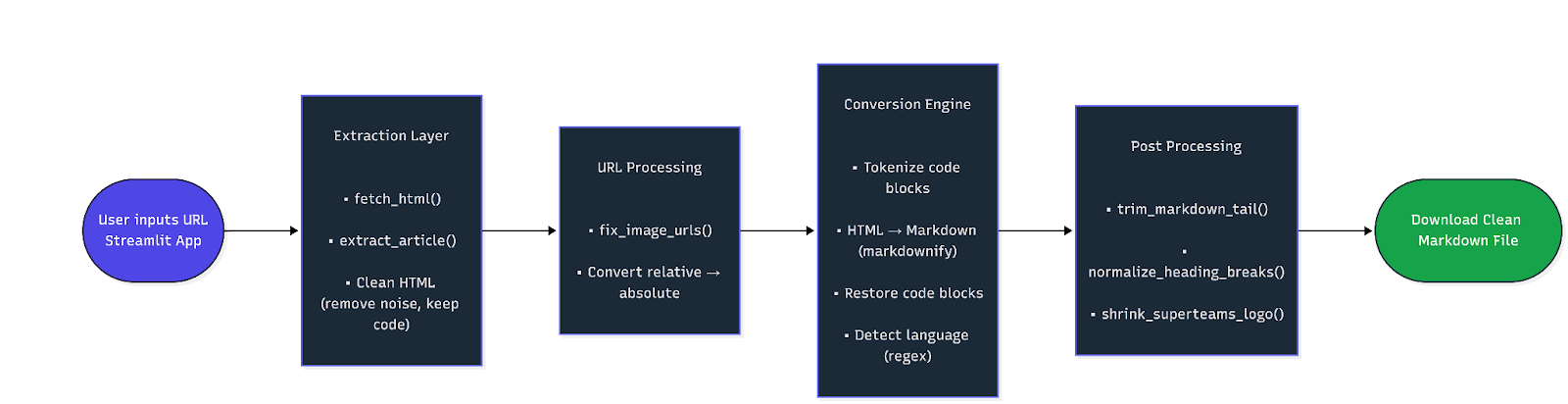
Here's the complete flow one more time, with every component labeled:
GitHub
You can find the complete source code for this project here:
https://github.com/AbhinayaPinreddy/conversion-of-superteams.ai-Articles-to-md-file-and-download
At Superteams, we help you build AI agents customized to your business needs. To learn more, speak to us.
Authors

Want to Scale Your Business with AI Deployed on your Cloud?